Quick Guide: Install LOOKCARD.IO Web App on Your Device
Access Web App faster with just one tap — no download required.
To give you a smoother and app-like experience, you can add the LOOKCARD.IO Web App directly to your phone’s home screen. This allows you to access your dashboard, cards, and services instantly, just like a native app. Follow the simple steps below based on your device:
FOR IPHONE:
STEP #01: LAUNCH YOUR BROWSER
Launch the Safari/ Google browser on your iPhone.
Navigate to your web app: https://app.lookcard.io
STEP #02: TAP THE “SHARE” ICON
At the bottom of the screen, tap the Share icon (square with an arrow pointing up).
STEP #03: SELECT “ADD TO HOME SCREEN”
Scroll down in the share menu and tap “Add to Home Screen.”
STEP #04: CUSTOMIZE NAME
You can rename the name for the shortcut (e.g., “LookCard”, “LOOKCARD.IO”, “LookCard Web App”).
Once done, click on the “Done” button on the top left.
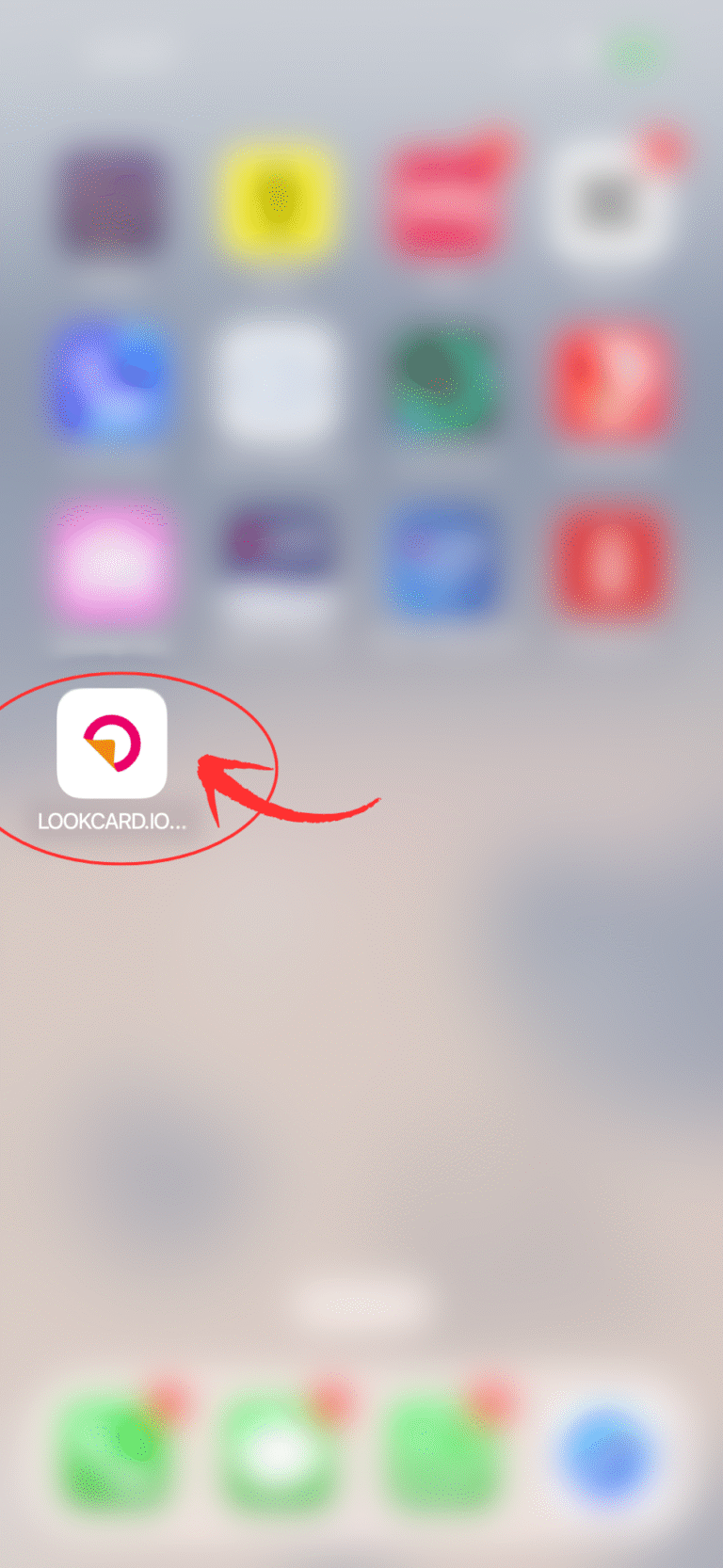
STEP #05: WEB APP ADDED
The icon will now appear on your home screen like an app.
FOR ANDROID
STEP #01: A PROMPT FOR APP INSTALL
When you first access the web app on your Android device, a prompt will automatically appear asking if you’d like to “Install App.” Simply tap to proceed for quick, app-like access.
However, if you don’t see the installation prompt — no worries! You can still add the LookCard Web App to your home screen manually by following the steps below.
STEP #02: ACCESS TO BROWSER
Launch Chrome on your Android device.
Go to: https://app.lookcard.io
Tap the three-dot menu in the upper right corner.
STEP #03: ADD TO HOME SCREEN
Tap “Add to Home screen.”
& you are DONE!
EN
EN
ZH
HK
EN
EN
ZH
HK
Cross-Border Access Restrictions
Please be advised that the promotion or distribution of our products and services beyond Hong Kong may be subject to regulatory requirements. The content on this website is intended solely for residents of Hong Kong.
By clicking “Continue,” you acknowledge that you have read and understood this advisory and are accessing the website independently, without any solicitation or promotion from LookCard+







 EN
EN  ZH
ZH  HK
HK